Hi - Dave here.
Happy Friday!
Excel has a function to sum with criteria (SUMIFS), to count with criteria (COUNTIFS), and even to average with criteria (AVERAGEIFS). But there is no "MEDIANIFS" function. So how do you calculate a median based on one or more conditions?
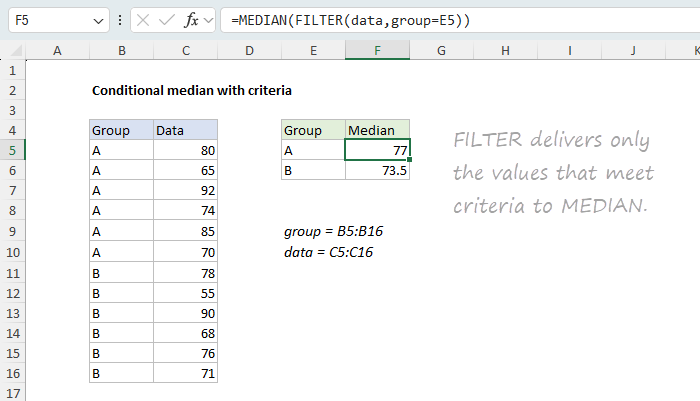
This week, I updated an old example to show two good ways to do it. You can see the first approach in the worksheet below, where the formula in F5 is:
=MEDIAN(FILTER(data,group=E5))
Working from the inside out, FILTER returns only the values that match the criteria, then MEDIAN returns the median of those values. Clean and intuitive.
[
Download the workbook and read the full explanation]
The second approach pre-dates the FILTER function and looks like this:
=MEDIAN(IF(group=E5,data))
Here, IF builds an array where the non-matching values become FALSE, and MEDIAN simply ignores them. Same result, different path.
It's interesting that the "modern" FILTER formula is actually longer than the older MEDIAN and IF formula. And while FILTER needs a newer version of Excel, MEDIAN with IF works in any version, but it becomes an old-style array formula entered with Control + Shift + Enter in Excel 2019 and older.
Both formulas are explained in detail on the page, including how they handle multiple conditions, how they fail differently when nothing matches, and how to use the same trick with other functions that are not natively "conditional".
Which approach do you prefer?
Note: the worksheet in this example will work in all versions of Excel, but the FILTER-based approach requires Excel 2021 or later. FILTER is a great function and I recommend you learn it well if you have it.
Excel formulas
We maintain a list of over 1000 working formulas
here.
If you need more structure, we also offer
video training.
Have a great weekend!
Dave
The Exceljet newsletter is free and sent weekly on Fridays. Each week, I take a detailed look at a specific Excel formula or function. Sign up on our home page.