Hi - Dave here.
Happy Friday!
Excel's SORT function is simple, right?
Well, yes and no. If you want to sort a range by its first column in ascending order, the SORT function is
very simple:
=SORT(range)
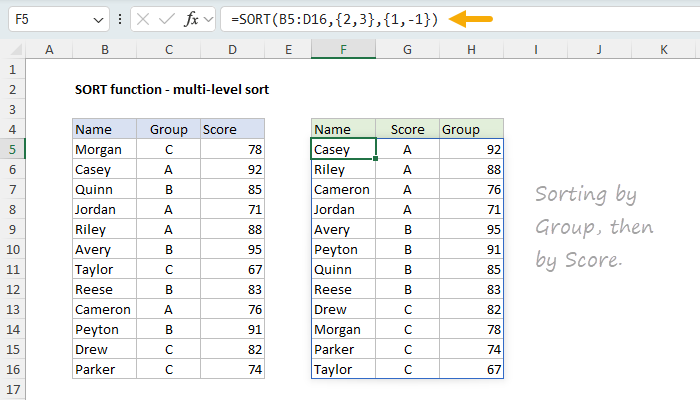
But if you want to sort by more than one column, the syntax is tricky. In the screen below, the formula in cell F5 looks like this:
=SORT(B5:D16,{2,3},{1,-1})
This tells SORT to sort the second column (Group) in
ascending order, then sort the third column (Score) in
descending order. You can see the result below:
[
Download the workbook and read the full explanation]
Click above for the full explanation and download the workbook to follow along. The SORT function page now has 8 practical examples, including sorting horizontal ranges, reversing sort order with a checkbox, and checking if data is already sorted.
Note: The SORT function is only available in Excel 2021+ or Excel 365.
Excel formulas
We maintain a list of over 1000 working formulas
here.
If you need more structure, we also offer
video training.
Have a great weekend!
Dave
The Exceljet newsletter is free and sent weekly on Fridays. Each week, I take a detailed look at a specific Excel formula or function. Sign up on our home page.