Hi - Dave here.
Happy Friday!
If you've been using Excel a while, you've probably built a running balance at some point: a list of transactions with debits and credits, and a current balance in each row. It's a classic Excel problem, and the classic solution is a simple formula copied down the balance column:
=F5-D6+E6
Take the previous balance, then subtract the debit and add the credit. Easy. But this formula is fragile, because every balance depends on the cell above. Insert a row, and the new row is skipped. Delete a row, and you get a cascade of #REF! errors below. You have to re-copy formulas to repair the damage.
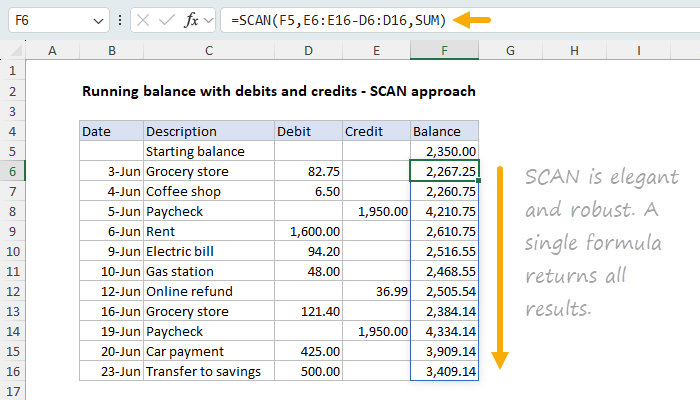
The modern alternative is the SCAN function. You can see how it works in the worksheet below, where the formula in cell F6 is:
=SCAN(F5,E6:E16-D6:D16,SUM)
[
Download the workbook and read the full explanation]
This is one formula, in one cell, that returns all balances at once. There is nothing to copy down. This formula is also robust: You can insert or delete a row, and SCAN simply recalculates all balances. No gaps, no #REF! errors, no formula repair work.
Of course, the classic formula is dead simple, while the SCAN formula is hard to understand for most users, even people who have used Excel for years. But this is a nice example of how dynamic array formulas have changed the way even simple problems are solved in Excel. The full article explains how SCAN works step by step, and also shows how to make the formula track new transactions automatically with the TRIMRANGE function.
Which approach do you prefer?
Note: SCAN requires Excel 2024 or later, or Excel 365. The workbook includes the traditional formula on Sheet1, which works in any version of Excel.
Excel formulas
We maintain a list of over 1000 working formulas
here.
If you need more structure, we also offer
video training.
Have a great weekend!
Dave
The Exceljet newsletter is free and sent weekly on Fridays. Each week, I take a detailed look at a specific Excel formula or function. Sign up on our home page.