Hi - Dave here.
Happy Friday!
In my last email, I shared more than 10 XLOOKUP examples. XLOOKUP is an
excellent function, but it has a key limitation: it can only return
one match.
For example, in the worksheet below, suppose we want the people in the Red group. Both formulas run against the same table. The XLOOKUP formula in F5 asks for "red" and returns a single record, Hannah, then stops:
=XLOOKUP("red",D5:D16,B5:D16) // one match
The FILTER formula in F8 uses the same test and returns every person in the Red group:
=FILTER(B5:D16,D5:D16="red") // all matches
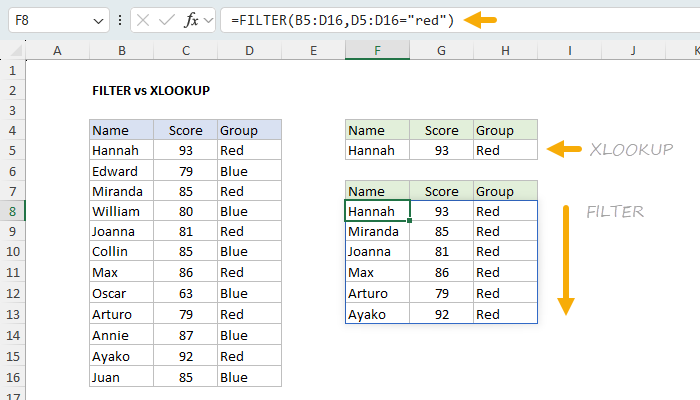
That is the key difference. When a lookup value matches more than one row, XLOOKUP gives you the first one. FILTER gives you all of them. In fact, you should think of FILTER as a lookup function designed to get all matches.
The trick with FILTER is to create a logical test that targets just the records you want to see. In the example above, the test is D5:D16="red", which returns TRUE for every row in the Red group. FILTER keeps those rows and discards the rest. The full article shows more than 10 examples of the FILTER function in various situations.
Download the workbook and read the full explanation here.
Note: FILTER requires Excel 2021+ or Excel 365.
Excel formulas
We maintain a list of over 1000 working formulas
here.
We also offer paid
video training.
Have a great weekend!
Dave
The Exceljet newsletter is free and sent weekly on Fridays. Each week, I take a detailed look at a specific Excel formula or function. Sign up on our home page.