Hi - Dave here.
Happy Friday!
How do you summarize noisy data that varies a lot?
One way to do it is to use a map table together with the XLOOKUP function to clean up the data and the GROUPBY function for the summary.
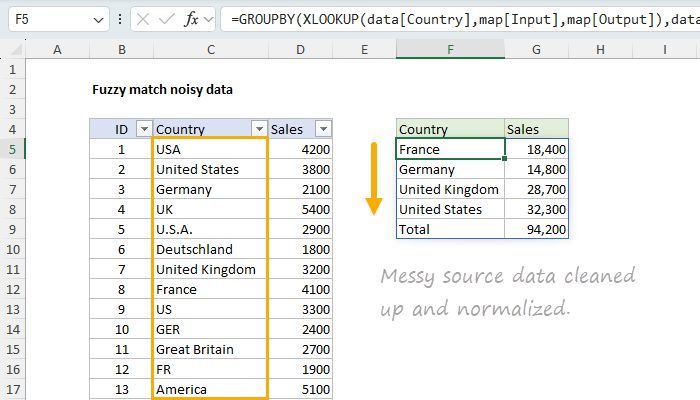
You can see this approach in the worksheet below. The country names in the source data are a complete mess. There are 21 different spellings for just 4 countries!
However, with a table to map the variants to a preferred name, we can summarize the data cleanly with a single formula like this in cell F5:
=GROUPBY(XLOOKUP(data[Country],map[Input],map[Output]),data[Sales],SUM)
[
Download the workbook and read the full explanation]
But Dave, this isn't fuzzy matching
Yes, I know :) I'm just using the word "fuzzy" because that's what most people call this kind of problem, and what people search for when they run into a challenge like this. This technique isn't fuzzy matching in the strict sense (true fuzzy matching wouldn't help much here anyway), but it solves the same problem more reliably. Read the article for a full explanation, then download the workbook and see how it works.
Note: GROUPBY, FILTER, and XLOOKUP require a current version of Excel. However, I've included a helper column + pivot table approach that will work in older versions of Excel on the last sheet.
Excel formulas
We maintain a list of over 1000 working formulas
here.
If you need more structure, we also offer
video training.
Have a great weekend!
Dave
The Exceljet newsletter is free and sent weekly on Fridays. Each week, I take a detailed look at a specific Excel formula or function. Sign up on our home page.