|
Hi - Dave here.
Happy Friday!
Excel's BYROW function is made to perform per-row calculations on data. This is useful when you need to "collapse" an entire row to a single result with "any", "all", or "none" logic.
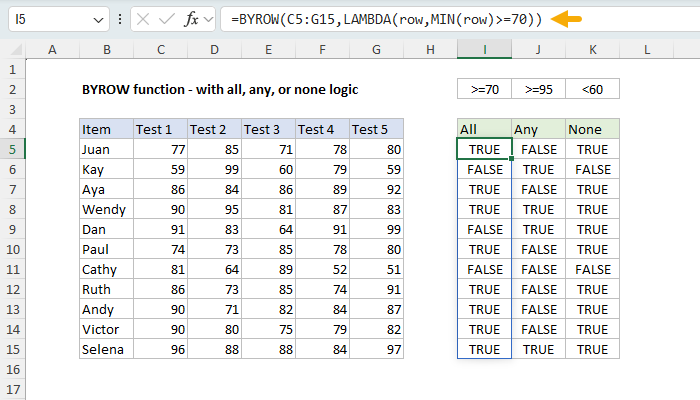
You can see an example in the worksheet below, where each student has 5 test scores, and BYROW is used to answer 3 questions:
1. Were all scores at least 70?
2. Were any scores over 95?
3. Were no scores below 60?
The formula in cell I5 answers question #1 with BYROW like this:
=BYROW(C5:G15,LAMBDA(row,MIN(row)>=70))
[ Download the workbook and read the full explanation]
BYROW returns all results at the same time. What's nice about BYROW is that it scales well to handle additional columns. Although the worksheet above contains just five columns of data, the same formulas would work just as well with 50 columns. Read the article above for a full explanation, and download the workbook to follow along.
Note: BYROW is only available in Excel 365 and Excel 2024.
Excel formulas
We maintain a list of over 1000 working formulas here.
If you need more structure, we also offer video training.
Have a great weekend!
Dave
The Exceljet newsletter is free and sent weekly on Fridays. Each week, I take a detailed look at a specific Excel formula or function. Sign up on our home page.
|
|
Exceljet
P.O. Box 4804
Salt Lake City, UT 84110
Copyright © 2025 Exceljet, All rights reserved.
You received this email because you are subscribed to our newsletter.
To unsubscribe, click the link below.
|
