Hi - Dave here.
Happy Friday!
I had a question recently about using XLOOKUP with multiple criteria. The catch is that one of the criteria was an approximate match.
XLOOKUP formulas like this are tricky because we can't just use a standard approach. However, it is possible to solve the problem by combining XLOOKUP with the IF function.
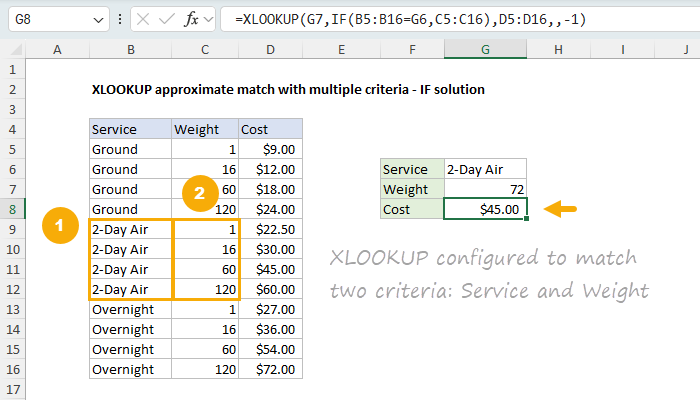
You can see an example below where we use XLOOKUP with the IF function to locate the correct cost based on service and weight. The formula in cell G8 looks like this:
=XLOOKUP(G7,IF(B5:B16=G6,C5:C16),D5:D16,,-1)
[
Download the workbook and read the full explanation]
Inside XLOOKUP, the IF function essentially filters the data to allow only data related to 2-Day Air. You can also solve this problem by combining XLOOKUP with the FILTER function, and the article explains both formulas in detail. Click above to read the full explanation, then download the workbook and try it out yourself!
Note: You will need Excel 2021 or later to use this workbook. In an older version of Excel, you can construct a similar formula based on INDEX and MATCH.
Mortgage payment workbook updated
After my last email, I had several people ask me about adding one-time payments to the mortgage payment schedule worksheet. This is now done. The model now accepts a fixed extra payment per month and one-time payments. This makes it easy to see exactly how additional principal payments shorten the loan term and reduce total interest. You can find the latest
here.
Excel formulas
We maintain a list of over 1000 working formulas
here.
If you need more structure, we also offer
video training.
Have a great weekend!
Dave
The Exceljet newsletter is free and sent weekly on Fridays. Each week, I take a detailed look at a specific Excel formula or function. Sign up on our home page.