Hi - Dave here.
Happy Friday!
How can you create a list of 10 random names in Excel?
Although Excel contains 3 functions dedicated to generating random numbers, it's not obvious how you can create a random list of text values.
However, with new functions like TAKE and SORTBY, it's actually pretty simple.
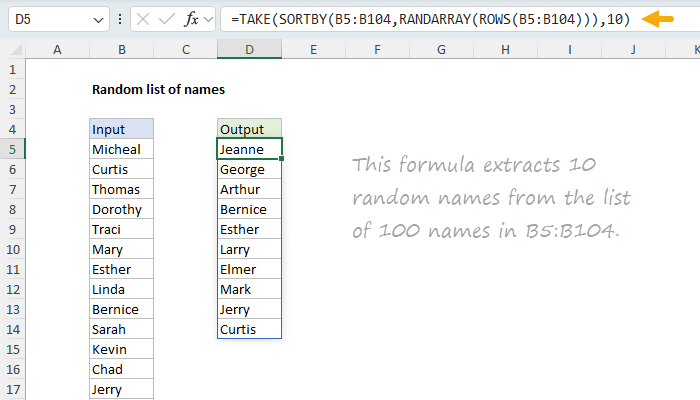
My favorite option is to sort a large list of names in random order, then use the TAKE function to select the first 10. You can see this approach in the worksheet below, where the formula in cell D5 is:
=TAKE(SORTBY(B5:B104,RANDARRAY(ROWS(B5:B104))),10)
[
Download the workbook and read the full explanation]
This formula works well, and you can easily customize the source names and change the number of names to select. The biggest problem is that, because RANDARRAY is a
volatile function,
any worksheet change will trigger a recalculation. As a workaround, you can use Paste Special > Values to overwrite the formula output with static values. Download the workbook and try it out yourself.
Note: The formula above requires Excel 365 or Excel 2024.
Paste Special to stop recalculation
Is Paste Special > Values the best way to stop formulas from recalculating? Well, it
does create static values, but it is an annoying workaround, especially since it
overwrites your formulas in the process. In my next email, I'll share a clever way to generate new random values only when you want to. Stay tuned.
Excel formulas
We maintain a list of over 1000 working formulas
here.
If you need more structure, we also offer
video training.
Have a great weekend!
Dave
The Exceljet newsletter is free and sent weekly on Fridays. Each week, I take a detailed look at a specific Excel formula or function. Sign up on our home page.