Hi - Dave here.
Happy Friday!
Last time I talked about Excel's
SORT function. This time, I want to cover SORTBY, and explain why Excel has two sort functions in the first place.
The short answer: SORTBY handles two specific situations that SORT can't:
1. You want to sort by values that shouldn't appear in the output.
2. The values you need to sort by aren't part of your source data at all.
Let's look at a concrete example.
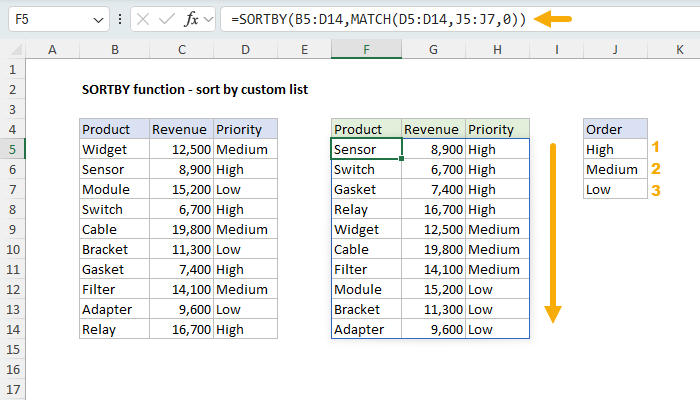
In the worksheet below, the goal is to sort a table by Priority — but in a custom order: High, Medium, Low. The problem is that sorting the Priority column directly gives you High > Low > Medium, because Excel sorts alphabetically by default.
The solution is to generate the numeric values we need for sorting with the MATCH function. The MATCH function looks up each priority value in the custom list and returns its position: High = 1, Medium = 2, Low = 3. SORTBY uses these numeric positions to sort the data, placing High-priority items first. Note that these numbers are
not part of the source data. The formula in F5 is:
=SORTBY(B5:D14,MATCH(D5:D14,J5:J7,0))
[
Download the workbook and read the full explanation]
This pattern works for any custom order — just list your values in the sequence you want and use MATCH to convert them to numbers. Click the link above for the full explanation, and download the workbook to follow along. The SORTBY page includes 8 examples covering custom lists, random sorting, sorting by text length, birthdays, substrings, and more.
Note: The SORTBY function is only available in Excel 2021+ or Excel 365.
Excel formulas
We maintain a list of over 1000 working formulas
here.
If you need more structure, we also offer
video training.
Have a great weekend!
Dave
The Exceljet newsletter is free and sent weekly on Fridays. Each week, I take a detailed look at a specific Excel formula or function. Sign up on our home page.