Hi - Dave here.
Happy Friday!
Last week I covered the IFS function, which lets you test several conditions in one formula without nesting IFs. This week it's the sibling: SWITCH.
Unlike IFS, which runs a separate logical test for each condition, SWITCH takes just one value and compares it to a list of possible matches. Results are provided as value/result pairs, and the first match wins.
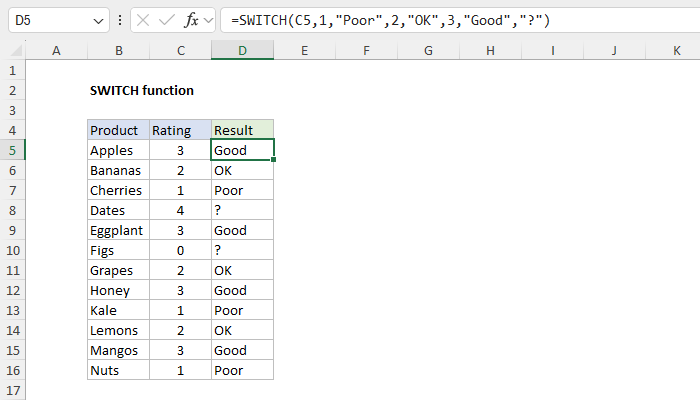
A typical use is translating codes into labels. You can see how this works in the worksheet below, where the formula in cell D5, copied down, is:
| =SWITCH(C5,1,"Poor",2,"OK",3,"Good","?") |
Download the workbook and read the full explanation
A rating of 1 returns "Poor", 2 returns "OK", and 3 returns "Good". The last argument, "?", is a default value. Without it, an unmatched value returns #N/A. For comparison, here is the same logic with the IFS function:
| =IFS(C5=1,"Poor",C5=2,"OK",C5=3,"Good",TRUE,"?") |
Both formulas return the same result, but note that IFS must repeat C5 in every test and needs TRUE as a final test to provide a default. SWITCH names C5 just once, and the default is simply the last argument. You can think of SWITCH as a streamlined version of IFS for situations where you are matching one value against a list of possibilities.
I updated our SWITCH page this week with seven worked examples. I also included some pros and cons of IFS, SWITCH, and CHOOSE, plus some thoughts on when you might want to use a lookup function like XLOOKUP or VLOOKUP instead.
Note: SWITCH requires Excel 2019 or later.
If you find Exceljet useful, you can support the site and go ad-free with the Exceljet Lifetime Pass. One payment, no subscription, and ads are gone.
Excel formulas
We maintain a list of over 1000 working formulas here.
If you need more structure, we also offer video training.
Have a great weekend!
Dave
The Exceljet newsletter is free and sent weekly on Fridays. Each week, I take a detailed look at a specific Excel formula or function. Sign up on our home page.

Exceljet
P.O. Box 4804
Salt Lake City, UT 84110
Copyright © 2026 Exceljet, All rights reserved.
You received this email because you are subscribed to our newsletter.
To unsubscribe, click the link below.